Document Camera
The Document Camera component provides a live camera interface for capturing identity documents. It includes real-time feedback, auto-capture, and customizable UI elements.
Properties
Core Properties
-
isOpen: Boolean
Starts or stops the camera. Whentrue, the camera feed and UI are rendered. Automatically set tofalseafter capture or error. -
showBackButton: Boolean
Controls the visibility of the back button that allows users to exit the camera. Default:true. -
showHelpIcon: Boolean
Controls the visibility of the Help icon. Default:true. -
toggleAutoCaptureDelay: Number (milliseconds)
Delay before enabling the Auto Capture toggle after the initial animation completes. Default:15000(15s). -
showBackOfDocumentAnimation: Boolean
Iftrue, shows the back-side animation first. Default:false. -
successTime: Number (milliseconds)
How long the success screen is shown after a capture. Default:500. -
autoCaptureTimeout: Number (milliseconds)
Timeout duration for auto-capture. Must be greater thantoggleAutoCaptureDelay. Default:60000(1 minute). -
enableAutoCaptureTimeout: Boolean
Enables or disables auto-capture timeout functionality. Default:true. -
enableAutoCapture: Boolean
Enables auto-capture as the launch mode. Whentrue, the camera opens in auto-capture and (subject toenableAutoCaptureTimeout) the auto-capture timeout is armed. Default:true. As an HTML attribute useenable-auto-capture; removing the attribute restores the default. -
enableTapToCapture: Boolean
Makes tap-to-capture available. WhentrueandenableAutoCaptureisfalse, the camera launches directly in tap-to-capture mode with the capture button shown immediately, and the auto-capture timeout is ignored. Default:true. As an HTML attribute useenable-tap-to-capture; removing the attribute restores the default. -
documentType:'auto' | 'id' | 'passport'Selects capture guidance and AssureID DPI gating for ID cards or passports. Default:'auto'. Inauto, the SDK infers ID vs passport from the detected document aspect ratio; explicitidorpassportvalues override inference.In
automode, the visible reticle intentionally remains passport-shaped for the duration of the session. This keeps the capture guide visually stable while document-type inference settles and prevents the reticle from changing shape mid-capture. The capture pipeline still uses the inferred document type internally for guidance and AssureID DPI gating.
Capture Mode Behaviour
enableAutoCapture and enableTapToCapture together determine which mode the camera launches in and whether the user can switch modes:
enableAutoCapture | enableTapToCapture | Launch mode | Auto-capture toggle | Auto-capture timeout |
|---|---|---|---|---|
true | true | Auto-capture | Shown after toggleAutoCaptureDelay | Armed (respects enableAutoCaptureTimeout) |
true | false | Auto-capture | Never shown | Armed (respects enableAutoCaptureTimeout) |
false | true | Tap-to-capture | Shown immediately (user can switch to auto-capture) | Ignored |
false | false | Auto-capture | Shown after toggleAutoCaptureDelay | Armed |
Setting both to false is a misconfiguration and is normalized to the default (both enabled) behaviour.
Detection Feedback
-
hints: DocumentDetectionHint
Customizes user guidance messages used by detection feedback. Any fields you omit fall back to sensible defaults. -
cameraState: CameraState (read-only)
Indicates the current detection state, e.g.,MoveCloser,OutOfFrame,FixGlare,FixBlur,Countdown,Capturing,TapToCapture.
Text Customization
The Document Camera component provides text and accessibility customization to support internationalization and accessibility.
Text precedence for visible copy:
texts(provided keys)- Component defaults
ARIA label precedence:
ariaLabels(provided keys)- Component defaults
-
texts: Object
Overrides user-facing copy. Recognized keys:autoCaptureTextautoCaptureOnTextautoCaptureOffTextalertTextcleanLenseText
-
ariaLabels: Object
Supplies ARIA labels for interactive controls. Recognized keys:backButtonhelpIconautoCaptureEnableautoCaptureDisabletapToCapturecloseHelpIconcloseHelpButtonhelpAnimationGlarehelpAnimationBlurhelpAnimationTooFar
-
generalInfoTexts: [String, String]
Text shown in the general information section.
First string: smart capture instructions.
Second string: tap-to-capture instructions. -
textsHelpSection: Object
Overrides the help panel text. Recognized keys:titlebodytipsTitleglareTipTitle,glareTipTextblurTipTitle,blurTipTexttooFarTipTitle,tooFarTipTextcloseHelpAltText
Localization Example
All visible text and ARIA labels can be set at once to switch the UI to another language. Only provide the keys you want to override — any omitted keys fall back to the component defaults.
const documentCamera = document.getElementById('live-document-camera');

// Visible copy
documentCamera.texts = {
  autoCaptureText: 'Auto Capture',
  autoCaptureOnText: 'ON',
  autoCaptureOffText: 'OFF',
  alertText: 'Struggling to capture? Disable Auto Capture',
  cleanLenseText: 'Make sure your camera lens is clean and hold the device steady'
};

// Accessibility labels (ARIA)
documentCamera.ariaLabels = {
  backButton: 'Back',
  helpIcon: 'Open help',
  autoCaptureEnable: 'Enable auto capture',
  autoCaptureDisable: 'Disable auto capture',
  tapToCapture: 'Tap to Capture',
  closeHelpIcon: 'Close help',
  closeHelpButton: 'Close help',
  helpAnimationGlare: 'Play reduce glare animation',
  helpAnimationBlur: 'Play reduce blur animation',
  helpAnimationTooFar: 'Play move closer animation'
};

// Detection hints
documentCamera.hints = {
  moveCloserHint: { title: 'Document is too far', description: 'Fit the document fully within the frame.' },
  fixBlurHint: { title: 'Document is blurry', description: 'Hold the document and device steady.' },
  fixGlareHint: { title: 'Glare detected', description: 'Move the document away from direct light sources.' },
  outOfFrameHint: { title: 'Document not in frame', description: 'Fit the document fully within the frame.' },
  capturingHint: { title: 'Document detected', description: 'Capturing...' }
};

// General instructions (index 0 = auto-capture, index 1 = tap-to-capture)
documentCamera.generalInfoTexts = [
  'Position your Identity Document within the frame.',
  'Position your Identity Document within the frame and select the capture button.'
];

// Help panel
documentCamera.textsHelpSection = {
  title: 'Guidance',
  body: 'Make sure your document is in a well-lit environment. Avoid reflections and shadows. The document must be fully visible and in focus.',
  tipsTitle: 'Tips',
  glareTipTitle: 'Reduce glare',
  glareTipText: 'Avoid direct light sources.',
  blurTipTitle: 'Reduce blur',
  blurTipText: 'Hold the document and device steady.',
  tooFarTipTitle: 'Move closer',
  tooFarTipText: 'Fit the document fully within the frame.',
  closeHelpAltText: 'Close help'
};
Lifecycle Overview
The Document Camera component provides a streamlined capture flow optimized for identity document scanning with real-time quality feedback.
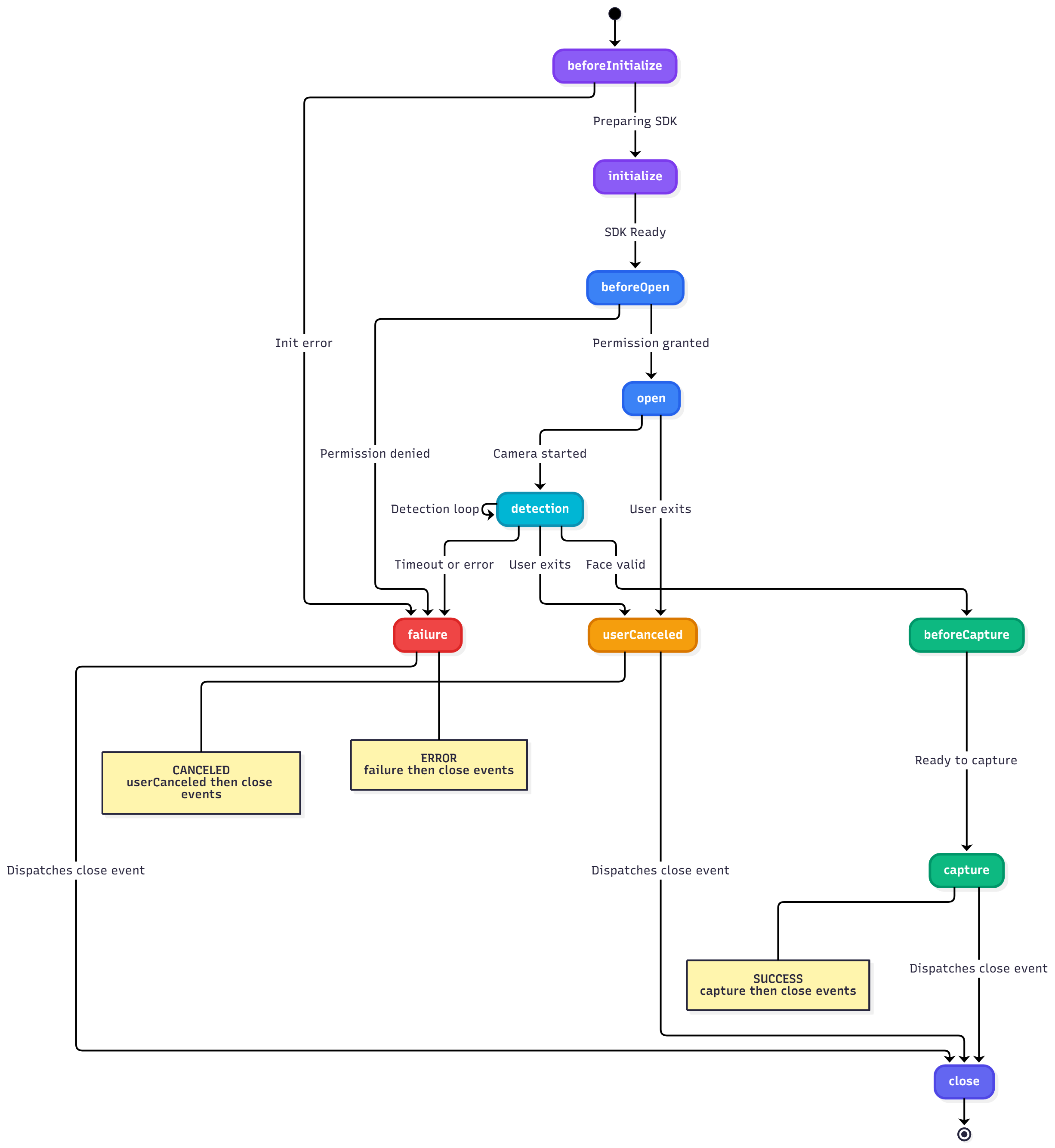
Key Flow Stages:
- open: Camera initialized and WebRTC stream established
- detect loop: Continuous frame analysis checking for glare, blur, angle, DPI
- capture: When quality thresholds are met (auto) or user taps (manual)
- close: Camera closes and cleanup. The
closeevent is always emitted aftercapture,userCanceled,failure, or timeout.
Events
-
OpenEventName
Triggered when the camera starts. -
CloseEventName
Triggered when the camera stops. This event is always emitted, regardless of how the camera session ends (successful capture, user cancellation, error, or timeout). After a successful capture, thecaptureevent is dispatched first, followed by thecloseevent. -
UserCanceledEventName
Triggered when the user clicks the back arrow and exits the document camera without capturing an image. Thecloseevent is dispatched after this event. -
FailureEventName
Triggered on error.detail.erroris of typeDocCameraError. Thecloseevent is dispatched after this event. -
CaptureEventName
Triggered on successful capture.detail.captureResponsecontains capture data. Thecloseevent is dispatched after this event. -
DetectEventName
Triggered on each frame detection.detailincludesdetectResponseandcameraState.
Example Usage
Basic Setup
<live-document-camera
  id="live-document-camera"
  autoCaptureTimeout="120000"
  enableAutoCaptureTimeout="true">
</live-document-camera>
Launching in Tap-to-Capture Mode
<live-document-camera
  id="live-document-camera"
  enable-auto-capture="false"
  enable-tap-to-capture="true">
</live-document-camera>
Or in JavaScript:
const camera = document.getElementById('live-document-camera');
camera.enableAutoCapture = false;
camera.enableTapToCapture = true;
Handling Timeout Error
const camera = document.getElementById('live-document-camera');

camera.addEventListener(LiveDocumentCamera.FailureEventName, (event) => {
  const error = event.detail.error;

  if (error.code === 'auto-capture-timeout') {
    // Handle timeout - e.g., show message to user
    console.log('Auto-capture timed out. Please use manual capture or offer to retry.');
  }
});
Type Definitions
type DocumentDetectionHint = {
  moveCloserHint?: DocumentHint;
  fixBlurHint?: DocumentHint;
  fixGlareHint?: DocumentHint;
  outOfFrameHint?: DocumentHint;
  capturingHint?: DocumentHint;
};

type DocumentHint = {
  title: string;
  description: string;
};

type DocCameraError = {
  code: string;
  message: string;
};

type CaptureResponse = {
  isGood?: boolean;
  isSharp?: boolean;
  isGlareFree?: boolean;
  isAdequateDpi?: boolean;
  isPortraitOrientation?: boolean;
  failedChecks?: string[];
  imageData?: ImageData;
  imageWidth?: number;
  imageHeight?: number;
};

type DetectResponse = {
  isGood: boolean;
  isSharp?: boolean;
  isGlareFree?: boolean;
  isAdequateDpi?: boolean;
  failedChecks: string[];
  dimensions?: Dimension;
  corners?: MappedCorners;
};

type Dimension = {
  width: number;
  height: number;
};

type MappedCorners = {
  topLeft: Corner;
  topRight: Corner;
  bottomLeft: Corner;
  bottomRight: Corner;
};

type Corner = {
  x: number;
  y: number;
};

enum CameraState {
  MoveCloser,
  OutOfFrame,
  FixGlare,
  FixBlur,
  Countdown,
  Capturing,
  TapToCapture
}